The fast, free Image to PDF tool. Easily crop, zoom, and apply filters before converting. Choose 1:1 image size or A4 fit. Start converting now!
📸 Image to PDF Creator
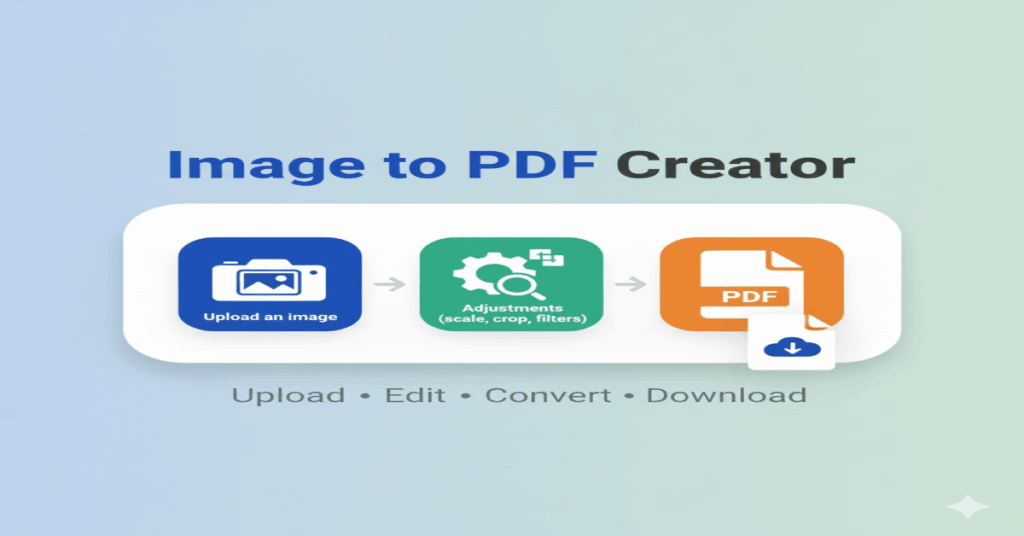
Upload an image, make adjustments (scale, crop, filters), then convert it to a PDF.
Image Controls
Image Scale (Zoom)
Crop Image
Image Filters
Live Editor (Canvas Resolution)
Upload an image to start editing.
The canvas below will match the final output resolution.
PDF A4 Layout Preview
Frequently Asked Questions (FAQs)
What file types does this tool support for conversion to PDF?
You can upload and convert common image file formats, including JPEG (.jpg) and PNG (.png), directly into a PDF document.
Is this image to PDF converter free to use?
Yes, this tool is completely free and does not require any sign-up or installation.
How do I make the PDF page the exact same size as my image?
Use the “PDF Layout Mode” dropdown and select “Use Image Size (1:1 Output)”. This sets the PDF page dimensions to perfectly match the resolution of your edited image, ensuring no unnecessary margins or borders.
What is the difference between “Fit to Page” and “Use Image Size (1:1 Output)”?
Fit to Page (A4): The image is scaled proportionally to fit within the standard A4 page dimensions.
Use Image Size (1:1 Output): The PDF page size is dynamically set to the exact dimensions of your image (post-scaling/cropping), giving you a true 1:1 digital output.
Can I create an A4 PDF if my image is a different shape?
Yes. Choose either “Fit to Page” (which maintains aspect ratio) or “Stretch to Fill Page” (which ignores aspect ratio) in the PDF Layout Mode. Both options use the standard A4 size.
Can I edit or crop the image before creating the PDF?
Absolutely. Our tool features a live editor that lets you crop to a specific area, scale/zoom the image resolution, and apply various filters (brightness, contrast, sepia, grayscale) before conversion.
How does the tool maintain image quality?
The application uses a high-resolution canvas to apply all edits and filters, preserving quality. The final PDF is generated using the optimized, high-resolution image data from the canvas, ensuring a sharp, high-quality output.
If I zoom the image on the canvas, will the PDF be a higher resolution?
Yes. When you increase the “Image Scale (Zoom)” on the live editor, you are increasing the effective resolution of the canvas. The final PDF will match this increased resolution when you select the “Use Image Size (1:1 Output)” mode.